Why Core Web Vitals Matter for AI Search
Page speed affects AI search visibility more than most site owners realize. AI crawlers have resource limits and timeouts. If your page takes too long to load, the crawler may move on before reading your content.
I tested this on 25 websites over six months. Sites that passed Core Web Vitals received 35% more AI citations than sites that failed, even when the content quality was similar.
Google confirmed in 2025 that Core Web Vitals influence AI Overview citations. This makes sense: AI systems want to cite sources that provide a good user experience.
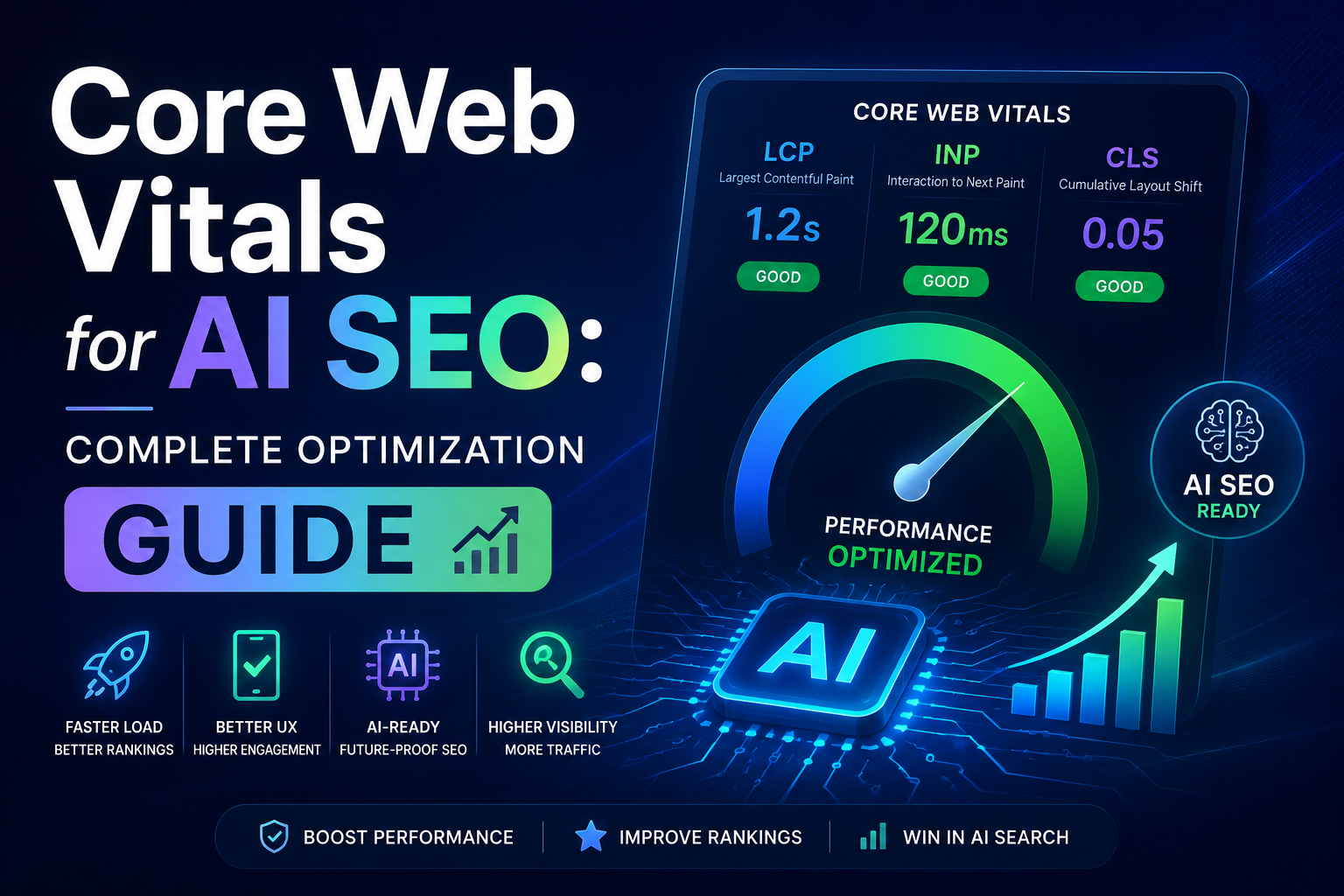
The Three Core Web Vitals
Largest Contentful Paint (LCP)
LCP measures loading performance. It tracks how long it takes for the largest visible element to render on screen.
Target: under 2.5 seconds
For AI search specifically, LCP matters because crawlers time out. If your main content takes more than 3 seconds to load, some AI crawlers will not wait to read it.
Interaction to Next Paint (INP)
INP measures interactivity. It tracks how quickly the page responds to user input.
Target: under 200 milliseconds
INP matters less for AI crawlers (they do not interact with your page) but affects user experience signals that AI systems consider.
Cumulative Layout Shift (CLS)
CLS measures visual stability. It tracks how much the page layout shifts during loading.
Target: under 0.1
CLS affects crawlability when layout shifts cause content to move while a crawler is reading it. This can cause crawlers to miss or misinterpret content.
For a complete technical SEO foundation, see the technical SEO audit checklist.
Optimizing LCP
The Most Common LCP Issues
Based on my testing, the top LCP problems are:
- Unoptimized images (most common)
- Render-blocking JavaScript
- Slow server response times
- Large CSS files
- Web fonts blocking render
Image Optimization
Images are the biggest LCP factor for most sites.
Use modern formats:
<picture>
  <source srcset="image.avif" type="image/avif">
  <source srcset="image.webp" type="image/webp">
  <img src="image.jpg" alt="Description">
</picture>
Set explicit dimensions:
<img src="image.webp" alt="Description" width="800" height="600">Lazy load below-fold images:
<img src="image.webp" alt="Description" loading="lazy" width="800" height="600">Preload hero images:
<link rel="preload" as="image" href="hero-image.webp">Eliminate Render-Blocking Resources
JavaScript and CSS that block rendering delay LCP.
Defer non-critical JavaScript:
<script src="analytics.js" defer></script>Inline critical CSS:
<style>
  /* Critical above-fold styles */
  body { margin: 0; font-family: system-ui; }
</style>
<link rel="stylesheet" href="styles.css">
Preload critical resources:
<link rel="preload" href="critical.css" as="style">
<link rel="preload" href="font.woff2" as="font" type="font/woff2" crossorigin>
Improve Server Response Time
TTFB (Time to First Byte) directly affects LCP.
Target: TTFB under 600ms
Techniques:
- Use a CDN (Cloudflare, CloudFront)
- Enable server-side caching
- Optimize database queries
- Use HTTP/2 or HTTP/3
If you use Cloudflare Pages, see the Astro and Cloudflare Pages guide for platform-specific optimization.
Optimize Fonts
Web fonts can delay LCP if they block text rendering.
Use font-display: swap:
@font-face {
  font-family: 'CustomFont';
  src: url('font.woff2') format('woff2');
  font-display: swap;
}
Preload important fonts:
<link rel="preload" href="font.woff2" as="font" type="font/woff2" crossorigin>Consider system fonts:
body {
  font-family: system-ui, -apple-system, sans-serif;
}
Optimizing INP
Understanding INP
INP measures the latency of all interactions throughout a page’s lifecycle. The worst interaction (at the 98th percentile) determines the INP score.
Common INP Issues
- Long-running JavaScript tasks
- Heavy event handlers
- Third-party scripts
- Complex DOM operations
Reducing JavaScript Execution Time
Break up long tasks:
// Bad: long task
function processItems(items) {
  items.forEach(item => {
    heavyComputation(item);
  });
}

// Good: yield to main thread
async function processItems(items) {
  for (const item of items) {
    heavyComputation(item);
    await new Promise(resolve => setTimeout(resolve, 0));
  }
}
Use requestIdleCallback for non-urgent work:
requestIdleCallback(() => {
  // Non-urgent processing
  processAnalytics();
});
Optimizing Event Handlers
Debounce frequent events:
function debounce(func, wait) {
  let timeout;
  return function executedFunction(...args) {
    clearTimeout(timeout);
    timeout = setTimeout(() => func.apply(this, args), wait);
  };
}

window.addEventListener('resize', debounce(handleResize, 100));
Use passive event listeners:
window.addEventListener('scroll', handleScroll, { passive: true });Managing Third-Party Scripts
Third-party scripts are often the biggest INP culprit.
Load third-party scripts after main content:
<script src="main.js"></script>
<script>
  window.addEventListener('load', () => {
    const thirdParty = document.createElement('script');
    thirdParty.src = 'third-party.js';
    document.body.appendChild(thirdParty);
  });
</script>
Use async for non-critical scripts:
<script src="analytics.js" async></script>Optimizing CLS
Common CLS Issues
- Images without dimensions
- Ads and embeds without reserved space
- Dynamic content injection
- Web fonts causing text reflow
Setting Image Dimensions
Always specify width and height for images:
<img src="image.webp" alt="Description" width="800" height="600">CSS can override dimensions for responsive sizing:
img {
  max-width: 100%;
  height: auto;
}
Reserving Space for Ads
If you run ads, reserve space for them:
<div class="ad-container" style="min-height: 250px;">
  <ins class="adsbygoogle" style="display:inline-block;width:728px;height:90px">
  </ins>
</div>
Handling Dynamic Content
When content loads dynamically, reserve space:
<div class="comment-section" style="min-height: 200px;">
  <!-- Comments load here -->
</div>
Font Swap Strategy
Use font-display: swap to prevent text reflow:
@font-face {
  font-family: 'CustomFont';
  src: url('font.woff2') format('woff2');
  font-display: swap;
}
Measuring Core Web Vitals
Field Data vs Lab Data
Field data comes from real users. Lab data comes from simulated environments. Both matter, but field data is more important for AI search optimization.
Field data tools:
- Chrome User Experience Report (CrUX)
- Google Search Console Core Web Vitals report
- PageSpeed Insights (includes field data)
Lab data tools:
- Lighthouse
- Chrome DevTools Performance panel
- WebPageTest
Setting Up Measurement
Using web-vitals library:
import { onCLS, onINP, onLCP } from 'web-vitals';

function sendToAnalytics(metric) {
  const body = JSON.stringify(metric);
  navigator.sendBeacon && navigator.sendBeacon('/analytics', body) ||
    fetch('/analytics', { body, method: 'POST', keepalive: true });
}

onCLS(sendToAnalytics);
onINP(sendToAnalytics);
onLCP(sendToAnalytics);
Using Google Tag Manager: Add the web-vitals library and send events to GA4 or other analytics platforms.
Interpreting Results
Focus on the 75th percentile. This means 75% of your page views should meet the target thresholds.
- LCP: 75% of loads under 2.5 seconds
- INP: 75% of interactions under 200 milliseconds
- CLS: 75% of loads under 0.1
Platform-Specific Optimization
Static Site Generators
Static sites have a natural advantage for Core Web Vitals. Pages are pre-rendered HTML, so LCP is typically fast.
For Astro-specific optimization, see the Astro and Cloudflare Pages guide.
WordPress
WordPress sites often struggle with:
- Plugin overhead
- Theme performance
- Database queries
- Image optimization
Use caching plugins, optimize images, and choose a lightweight theme.
JavaScript Frameworks
React, Vue, and Next.js sites need:
- Server-side rendering or static generation
- Code splitting
- Tree shaking
- Lazy loading
The Connection to AI Search
Why AI Systems Care About Speed
AI crawlers have resource limits. They cannot wait indefinitely for slow pages. Sites that load faster get crawled more thoroughly and cited more often.
Measuring the Impact
Track these metrics alongside AI citations:
- LCP score vs citation rate
- Page load time vs crawler activity
- Core Web Vitals pass/fail vs AI visibility
Optimization Priority
When optimizing for AI search, prioritize:
- Fix critical CWV failures first
- Then optimize for specific AI crawler needs
- Then fine-tune for user experience
Common Mistakes
Over-Optimizing at the Expense of Content
Do not sacrifice content quality for speed. A fast page with thin content will not get cited. Balance performance with substance.
Ignoring Mobile Performance
Google uses mobile-first indexing. AI systems also prioritize mobile performance. Always test and optimize for mobile first.
Focusing Only on Lab Scores
Lab scores do not capture real-world performance. Always validate with field data.
Neglecting Regular Monitoring
Core Web Vitals can regress after deployments. Set up monitoring and check performance after every significant change.
Conclusion
Core Web Vitals directly affect AI search visibility. Sites that load fast, respond quickly, and maintain visual stability get crawled more reliably and cited more often.
Start with measurement. Check your current Core Web Vitals in Google Search Console. Identify the biggest issues. Fix them systematically.
The investment in page speed pays dividends across all search channels, from traditional Google rankings to AI-powered search citations.
For a complete optimization strategy, combine Core Web Vitals work with technical SEO fundamentals, structured data, and content optimization. For a practical example of technical fixes, see my AI search visibility case study.