Playwright as Claude Code Skill: Browser Automation Guide
Testing has become the bottleneck in AI-assisted development. Developers can write code fast, but validating it in a real browser context still takes time. Claude Code can identify issues in code, but it needs a way to interact with live browsers to verify those fixes.
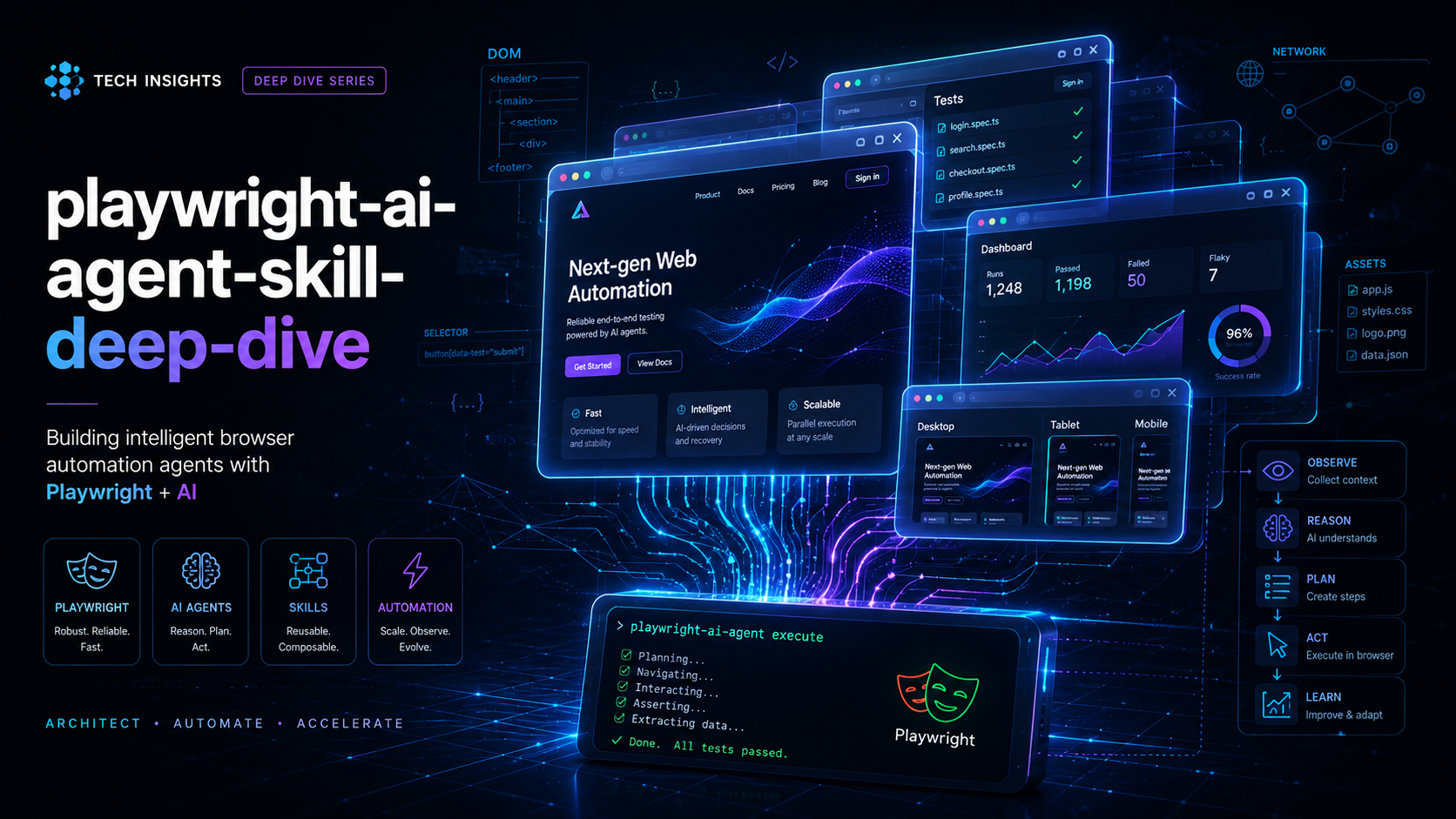
Microsoft Playwright solves this. It gives AI agents the ability to control browsers, inspect DOM elements, capture screenshots, and run end-to-end tests from the terminal.
This guide covers Playwright’s architecture, how to set it up as a Claude Code skill, and how it compares to Cypress, Puppeteer, and Selenium.
Why Playwright works for AI agents
Traditional automation tools use HTTP polling, which introduces latency and flakiness. Playwright uses a persistent WebSocket connection instead. This gives it a few key advantages:
Core technical pillars
- Bi-directional WebSocket architecture: Commands, events, and state changes stream in real time. An AI agent can listen to console errors, network failures, or layout shifts instantly.
- Browser context isolation: A single browser instance can run thousands of isolated contexts in milliseconds. Each context has its own cookies, storage, and viewport. This keeps overhead low when simulating multiple users.
- Deterministic auto-waiting: Before any interaction (like
.click()or.fill()), Playwright checks that the element is attached, visible, stable, and not obscured. No moresleep()statements. - Accessibility-first locators: APIs like
getByRole(),getByPlaceholder(), andgetByText()let AI agents target elements the way users see them, not through fragile CSS selectors.
Setting up Playwright as a Claude Code skill
Claude Code discovers skills by scanning .claude/skills/ directories. You can install this skill per project or globally.
Per-project installation
From your project root:
npm init playwright@latest
mkdir -p .claude/skills/playwright
Global installation
For system-wide access:
mkdir -p ~/.claude/skills/playwrightCreating the skill file
Create SKILL.md in the playwright directory:
---
name: playwright
description: Full-lifecycle cross-browser automation, visual regression testing, and E2E validation suite.
---
Write execution rules below the frontmatter. Tell Claude to output tests in your tests/ folder and review trace logs on failure.
Verifying the skill
Start Claude Code from your project directory:
claudeType / to see available skills. You should see /playwright listed.
How it compares to alternatives
Each automation tool has different strengths.
Comparison matrix
| Feature | Playwright | Cypress | Puppeteer | Selenium |
|---|---|---|---|---|
| Protocol | Persistent WebSocket | In-browser injection | Native CDP | HTTP polling |
| Execution | Out-of-process | In-process sandbox | Out-of-process | Out-of-process proxy |
| Cross-browser | Chromium, Firefox, WebKit | Chromium, Firefox | Chromium only | Most browsers |
| Multi-tab support | Native | Limited | Native | Supported, high friction |
| AI integration | Excellent | Moderate | Moderate | Poor |
Playwright vs. Selenium
Selenium uses HTTP-based WebDriver, which sends discrete commands to the browser. Every click and element lookup incurs network overhead. Modern SPAs cause frequent StaleElementReferenceException errors.
Playwright uses a persistent WebSocket connection. The browser broadcasts when elements are ready, eliminating polling. Playwright also compiles a native WebKit engine, so you can test Safari features on Linux and Windows without macOS cloud runners.
Playwright vs. Cypress
Cypress runs inside the browser window. This gives developers a nice GUI and time-travel debugger. But the code is locked in a browser sandbox.
Cypress struggles with cross-domain flows (like OAuth redirects) and cannot control multiple browser windows easily. Playwright operates outside the browser process, handling multi-tab synchronization and network interception without restrictions.
Playwright vs. Puppeteer
Puppeteer was Google’s tool for controlling Chrome via Node.js. It works well for simple scrapers and PDF generation, but it only supports Chrome.
The engineers behind Puppeteer moved to Microsoft to build Playwright. They kept the fast WebSocket performance but added Firefox and WebKit support, type-safe test runners, parallel execution, and the Trace Viewer tool.
Strengths and limitations
Before using Playwright in production, consider the tradeoffs.
Strengths
- Trace Viewer: On failure, Playwright saves a
.zipfile with DOM snapshots, network logs, and console output. An AI agent can parse this to understand exactly why a test failed. - Storage state reuse: Save authenticated state (cookies, tokens) as a JSON file. New test sessions can skip login steps entirely.
- Parallel execution: Browser contexts use minimal resources. You can run dozens of parallel sessions on a standard machine.
Limitations
- Initial setup: First-time installation downloads browser binaries for Chromium, Firefox, and WebKit. In restricted CI/CD environments, this can cause network issues.
- Async complexity: Advanced configurations require solid understanding of async/await and promise handling.
- No legacy browser support: Playwright does not support Internet Explorer or old Edge versions. If you need those, use Selenium.
Usage examples
Once installed, you can run automation tasks with simple instructions.
Checking link integrity and metadata
Ensure all pages load correctly and have proper accessibility attributes.
Prompt: “Write a crawler that visits all pages starting from
http://localhost:3000. Check that each page has exactly one<h1>, every image has non-empty alt text, and flag any failed network requests.”
E-commerce checkout regression
Verify that layout or config changes do not break checkout flows.
Prompt: “Create an end-to-end test for our staging checkout. Simulate a user browsing to the shop, selecting an item, changing quantity in
/cart, and completing checkout. Enabletrace: 'retain-on-failure'and run the test.”
Cross-browser visual regression
Validate that CSS changes maintain visual consistency across browsers.
Prompt: “Generate a visual regression test using
toHaveScreenshot. Capture pages in Chromium and WebKit at Desktop (1440x900) and Mobile (iPhone 15 Pro) sizes. Compare against baselines and flag any deviation over 1%.”
What this means for development
Playwright as a Claude Code skill changes how testing works. Instead of writing tests manually, the AI agent can verify its own changes in real browsers. This closes the loop: write code, test it, fix issues, all in one session.
Related articles
- lesishu/seo-guide-skill: Claude Code SEO Guide - Set up SEO automation as a Claude Code skill
- AI Agent Humanizer Skill Guide - Remove AI writing patterns from your content
- Install Claude Code on Windows - Set up Claude Code on your machine